5 min read
What a Shopify Accessibility Audit Checks, and What Happens Next

When a store owner asks us whether their site is accessible, the honest first answer is usually "probably not yet," and that is not a criticism. In WebAIM's 2026 review of the top one million home pages, 95.9% had accessibility failures that software alone could detect. Most of those failures come from a short list of everyday problems, and most of them can be fixed in the theme without a redesign. This post walks through what an accessibility audit of a Shopify store looks at, how the fixes get made, and how to keep the store accessible once the audit is done.
Why audit a store now
The busy season puts more shoppers on your store than any other time of year. Some of them use a screen reader, move through the page with a keyboard, or zoom in to read. When a button has no name or a form field has no label, those shoppers cannot finish checking out, and they rarely tell you why they left.
There is a legal side, too. The Web Content Accessibility Guidelines (WCAG) are the standard most accessibility laws and settlements point to, and the current version, WCAG 2.2, became a W3C Recommendation in October 2023. In Europe, the European Accessibility Act began applying to e-commerce services on June 28, 2025, so stores that sell to shoppers in the EU now have requirements of their own. We are not lawyers, and an audit is not legal advice, but it gives you a clear written picture of where your store stands.
Step 1: The automated scan
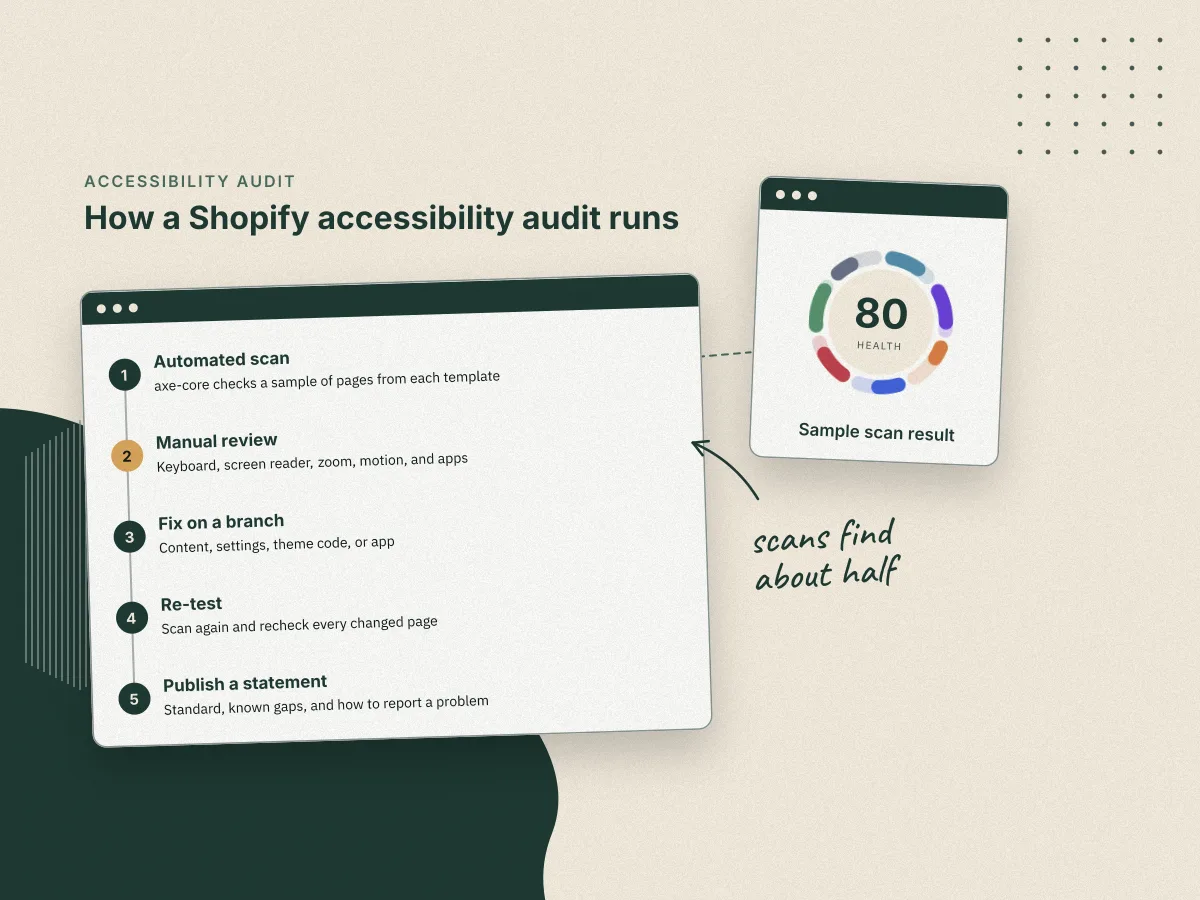
An audit starts with an automated scan. We use axe-core, the open-source testing engine from Deque, and run it across a sample of pages from each template: the home page, collections, products, the cart, and so on. The scan is fast and consistent, and it catches the problems that show up again and again. WebAIM's list of the six most common failures reads like a Shopify theme checklist.
Low contrast text appears on more than four in five home pages.
Source: WebAIM Million 2026
The limit is that software can only judge what it can measure. In Deque's study of more than 2,000 audits, automated axe-core rules found 57% of the total issues. The rest needed a person to find them, which is where the second step comes in.
Step 2: The manual review

The manual review covers what a scan cannot judge. A person works through the store the way a shopper would, one check at a time:
- Keyboard only: Can you reach the menu, pick a variant, open the cart drawer, and get to checkout without a mouse? Is the focus outline visible at every step?
- Screen reader: Does each product image's alt text describe the product, and do buttons announce what they do?
- Zoom and reflow: At 200% and 400% zoom, does the page still read in one column without hiding content?
- Motion and timing: Do slideshows pause, and can a shopper stop a video that plays on its own?
- Apps: Review widgets, pop-ups, and chat bubbles are often the least accessible parts of a store, because the theme does not control their code.
Each finding is recorded with the WCAG criterion it fails, the pages it affects, and where the fix belongs: the content, a theme setting, the theme code, or an app. That last detail matters, because it tells you who does the work in the next step.
Step 3: Fixing what the audit found
Most fixes land in one of three places. Content fixes, like alt text and link wording, are made in the Shopify admin. Setting fixes, like a text color with too little contrast, are made in the theme editor. Code fixes are made in the theme files, on a branch, the same way we handle any theme change in our GitHub theme workflow.
Here is a typical code fix. An icon-only close button on a cart drawer has no text, so a screen reader announces it as "button" and nothing more.
In plain terms: the button looked fine on screen, but assistive technology had no name to read out. Adding a label tells a screen reader to say "Close," so the shopper knows what the button does. The label comes from the theme's translation file, so it follows the store's language.
Accessibility fixes and speed fixes often overlap. Images that load lazily still need alt text, and removing a heavy app script can help both scores at once. Our guide to faster Shopify load times covers the speed side.
Step 4: Re-test and write it down
After the fixes are merged, we run the scan again and repeat the manual checks on every page that changed. Then the store publishes an accessibility statement. It says which standard the store aims for, what is known to still need work, and how a shopper can report a problem. Our accessibility statement guide includes a template you can adapt.
Keeping the store accessible after the audit

An audit is a snapshot of one moment. A new app, a new section, or a new batch of product photos without alt text can bring the old problems back. Three habits keep the store where the audit left it:
- Write alt text when you upload product images, not later.
- Test any new app with a keyboard before you keep it installed.
- Scan the store again after each theme update, because a new theme version can undo an earlier fix.
Where to start this week
If you only do one thing this week, use your keyboard. Open your store, set the mouse aside, and try to add a product to the cart and reach checkout using Tab, Enter, and the arrow keys. If you get stuck, you have found the first item on your audit, and that is the right place to start.
Want to see where your store stands? Our free accessibility scanner runs the same axe-core checks from Step 1 and shows you what it finds. When you're ready for the manual review and the fixes, reach out and we'll review your store with you.