20 min read
How We Run Shopify Themes in GitHub: Branches, Naming, and Safe Theme Updates

Why we put every Shopify theme in Git
Every theme we touch lives in a GitHub repository, with a main branch for the live store, a staging branch for review, and short-lived branches for each piece of work. That setup is what lets us customize a theme heavily and still take the theme developer's updates later without losing anything.
Without version control, a Shopify theme is a pile of files that anyone with admin access can change at any time. Someone tweaks the announcement bar, a developer edits a snippet, an app injects code, and nobody can say later which change broke the cart. Git gives every change a name, a date, and an author, and it gives us a clean way to undo one.
This post is our playbook. If you're a developer or agency, it's the branch model, naming rules, and update process we use, and you're welcome to borrow any of it. If you're a merchant thinking about working with us, skip to the last section for a plain-language version of what to expect.
How Shopify's GitHub integration works

You connect one branch of a repository to one theme in the store, and from then on the branch and the theme stay in sync in both directions. Push a commit and the theme updates. Save something in the admin and Shopify commits it back to the branch.
Setup is quick. After installing the Shopify GitHub app, go to Online Store > Themes, choose Add theme > Connect from GitHub, and pick the account, repository, and branch. The theme card then shows the repo, the branch, and the time of the last commit.
A few behaviors shape everything else in this post:
- There's no pause button.
The only way to stop the sync is to disconnect the branch, and that's permanent (more on that below). Any save in the theme editor, the code editor, or by a theme app lands as a commit on the connected branch, authored by the Shopify bot. The commit body names the shop and the last person who saved. Saves within about 10 seconds of each other are batched into one commit. - The branch has to look like a theme.
Shopify only reads the standard theme folders (assets, blocks, config, layout, locales, sections, snippets, templates). - Disconnecting is permanent.
A branch can't be reconnected to a theme if it gets disconnected. Reconnecting creates a brand new theme. Publishing a connected theme, on the other hand, keeps the connection, which is how main ends up driving the live store. - The code editor wins quietly.
Shopify warns you about conflicts in the theme editor, but the admin code editor overwrites the GitHub version with no alert. If a theme ever drifts from its branch, the theme card's Actions > Reset to last commit pulls the branch back down, and View logs shows recent sync events.
What belongs to us and what belongs to the merchant
The most important idea in the whole workflow is that a theme has two kinds of files. Code files (Liquid, CSS, JavaScript, and section schema) are ours. Settings files (JSON) are the merchant's.
When a merchant changes a color, rearranges a homepage, or edits a product template in the theme editor, Shopify writes that to JSON: config/settings_data.json, the templates/*.json files, and section group files like sections/header-group.json. Editing default theme content writes to the locales files too. If the store customizes pages by market, Shopify also writes contextual template files like templates/index.context.ca.json, plus config/markets.json. Those files change on the live theme every week, often every day, and none of those changes come from us.
So our rule is simple. On the live branch, JSON is content, not code. We never let a merge from staging or dev overwrite the merchant's current JSON, and we always pull the live branch's latest commits down before promoting anything up. The next section shows how.
The branch model: main, staging, and dev
We run three long-lived branches, each connected to its own theme, plus short-lived branches for individual pieces of work. Code moves up toward the live store through pull requests. The merchant's edits move back down by merging main into the branches below it.
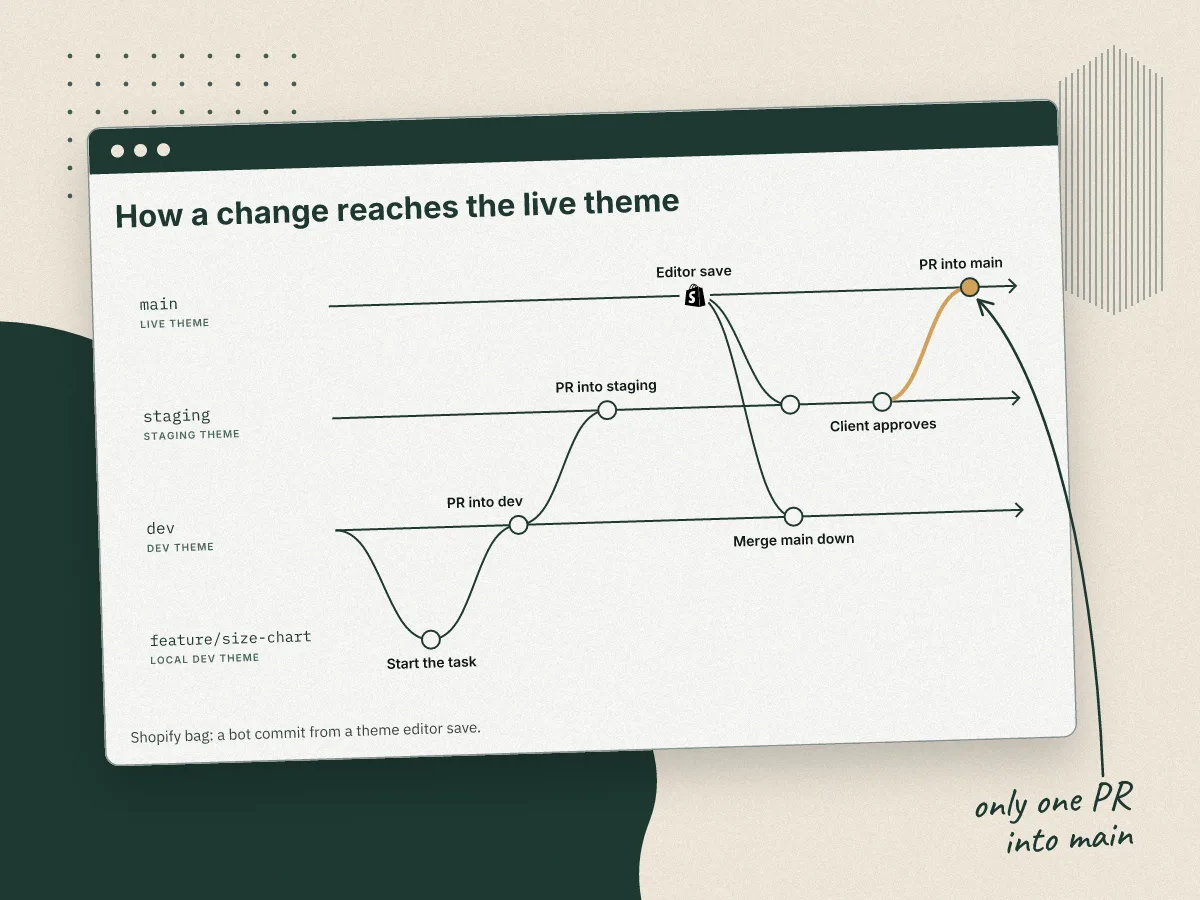
The Shopify bag marks a commit the Shopify bot makes when someone saves in the theme editor.
Promoting work without overwriting the merchant
The failure we're designing around is easy to fall into. You branch staging off main in March, the merchant rebuilds their homepage in the theme editor in April, and in May you merge staging into main. Git happily replaces April's homepage with March's.
The fix is to always bring main down before taking anything up:
- Pull the live branch so you have every commit the Shopify bot made.
- Merge main into staging (and into dev, so it never drifts far).
- Resolve any conflicts in JSON files in favor of main, unless the change is one you meant to ship.
- Push staging, let the staging theme update, and have the client review it.
- Open a pull request from staging into main, and merge it once it's approved.
When we review that pull request, we look at every JSON file in the diff. If a file only changed because someone clicked around the staging theme editor, we put main's version back before merging:
Keep the gap between the merge-down and the final merge short. If the merchant saves the same file on the live theme in between, GitHub will flag a conflict on the pull request, which is annoying but far better than a silent overwrite.
Hotfixes and campaigns
An urgent fix doesn't wait for the full cycle. We branch fix/ off main, open a pull request straight back into main, and then merge main down into staging and dev so the fix doesn't get lost on the next release.
For a sale or seasonal campaign, Shopify's own guidance is to build it on a non-main branch, publish that theme for the event, and republish the main theme afterward. The catch is that any theme editor changes the merchant makes while the campaign theme is live are saved to the campaign branch, not to main. We merge anything worth keeping back into main when the campaign ends.
Shipping a new template without rebuilding it on live
The layout of a new template travels with the code, but the store data it points to doesn't. So we build new templates in the same store as the live theme, and the only step left after the merge is assigning the template.
A JSON template is a data file. It lists the sections on the page, their order, their blocks, and every setting the developer chose. When a developer builds templates/product.feature.json in the theme editor, all of that is saved in that one file, and it merges into main like any other file.
What the file holds is a set of references to store data, not the data itself:
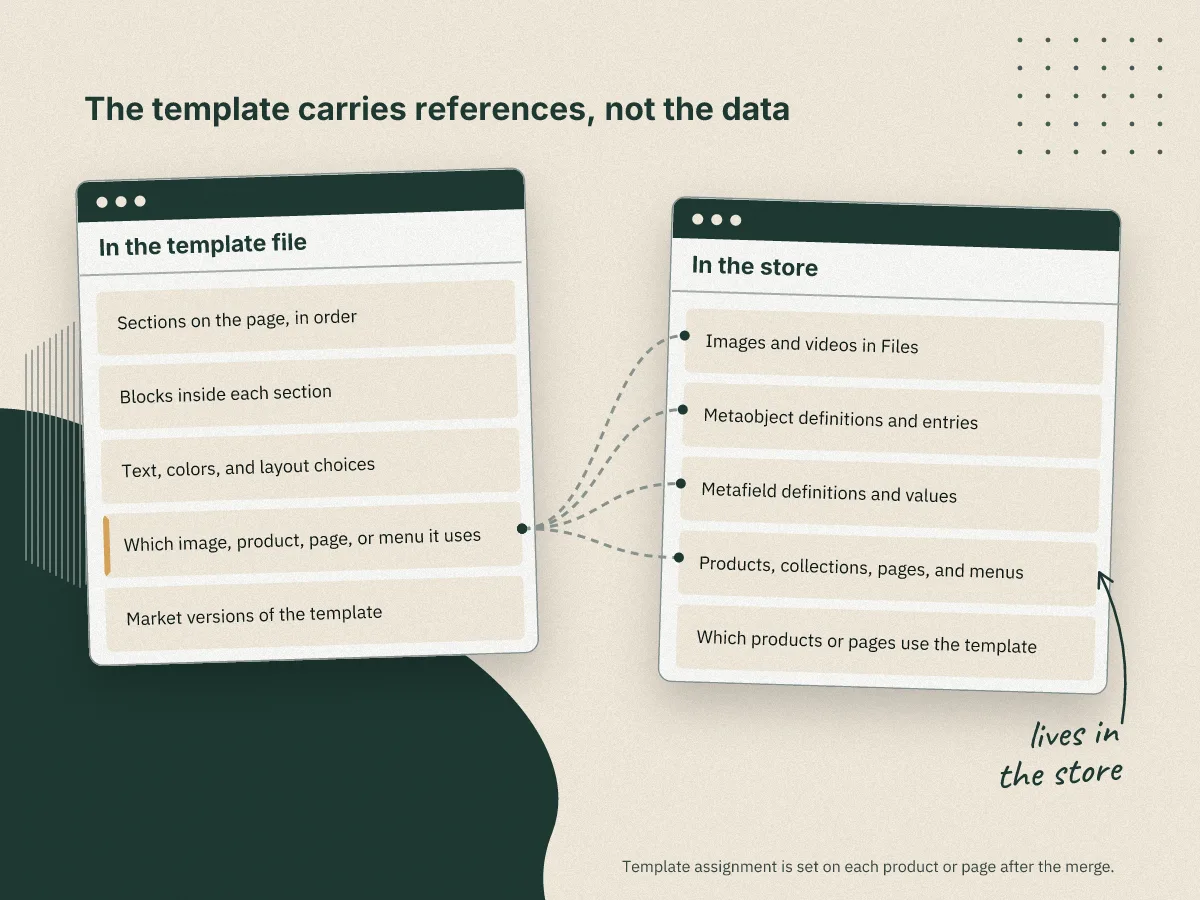
Shopify's setting docs spell out what happens when a reference doesn't resolve. An image setting pulls from the store's Files and comes back empty if the file isn't there. Product, page, and metaobject pickers come back blank if the item doesn't exist. Nothing errors. The section just renders without its content.
Build it on staging, in the live store
Because the staging and dev themes sit in the same store as the live theme, every image, metaobject, and product the developer picks already exists where it's going. Here's how a new template ships:
- The developer creates the template on the staging or dev theme in the theme editor and builds out the page with real content.
- The Shopify bot commits the new file to that branch. The developer pulls it down so the commit is in their local history.
- We merge main into staging as usual, then open a pull request from staging into main. A brand new template file almost never conflicts.
- Once it merges, the template is on the live theme, laid out and filled in exactly as it was on staging.
- We assign it to the products or pages that should use it in the Shopify admin, then spot check those pages on the live store.
Assignment is the one step that can't be done ahead of time. It's a setting on each product or page, not part of the theme, and the admin only offers templates the published theme has.
When it was built in a different store
If the template was built in a separate development store, its references point at that store's data. Before or right after the merge, someone has to recreate the metaobject definitions and entries, metafields, menus, and uploaded files on the live store, then open the template in the live theme editor and re-pick anything that came up empty. That's why we keep development inside the client's own store whenever we can.
Changing a template that already exists
Editing an existing template like index.json or product.json is riskier than adding a new one, because the merchant may have changed that same file on live since you branched. Before you touch it, pull main and merge it into your branch, so you're editing the current live version. Then review that file's diff line by line in the pull request.
For a big change to a page the merchant edits often, like a homepage rebuild, we agree on a short pause in theme editor changes to that page while the release goes out. It's a small ask, and it means nobody's afternoon of edits gets overwritten.
Repo setup and naming conventions
Naming feels like housekeeping until you have a dozen stores, 20 themes in a library, and a developer asking which one is live. Shopify caps a store at 20 themes, so every name has to say what the theme is and where it came from.
Commits and pull requests
Commit messages start with a type, so the history reads like a changelog: feat: add size chart section, fix: stop cart drawer overflow on mobile, vendor: Horizon 3.2.0 (untouched). Commits from the Shopify bot stay exactly as Shopify writes them, which makes it easy to tell merchant edits from ours at a glance.
Every pull request includes the preview link for the connected theme, a short list of what to test, and a note on any JSON files it touches. Nothing reaches main without one. We protect main with a GitHub repository rule so it can't be force pushed or deleted, and so our changes need a pull request. The rule needs one exception. Theme editor saves reach main as direct commits from the Shopify bot, not pull requests, so we add the Shopify GitHub app to the rule's bypass list. Without it, GitHub rejects the merchant's saves. Bypass lists only work on repos owned by an organization, and protecting a private repo requires a paid GitHub plan, which is one more reason client repos belong in an organization. GitHub's branch protection docs cover the setup.
The README is the map
Every repo's README answers the questions a new developer, or future us, will ask on day one. The most important part is the remotes, copied straight from git remote -v, so nobody has to guess where code comes from and where it goes.
Local development with Shopify CLI
For day-to-day work on a feature branch we usually skip connecting a theme at all. Shopify CLI's shopify theme dev gives each developer a private development theme with live reload. When we push files to a shared theme from the command line, we use the --ignore flag to skip config/settings_data.json and the JSON templates, so a push never clobbers what someone set up in the theme editor.
Keeping customizations safe on a theme like Horizon

The whole trick to surviving theme updates is keeping the vendor's code and our code in separate places, so an update replaces their files and leaves ours alone. When the two are tangled together, every update turns into a line-by-line hunt for what we changed.
What Shopify's updater does on its own
Shopify's built-in updater is better than it used to be, and it's worth knowing exactly what it does. According to Shopify's help docs on updating themes:
- The update arrives as a new draft theme named "Updated copy of" your theme. Your live theme isn't touched until you publish the copy.
- Theme editor customizations (settings, section and block layout, app embeds, and edited content) are copied into the new version.
- Code edits are carried over only if they don't conflict with the update. The theme card tells you whether they were included. If they weren't, you copy them over by hand.
- Changes to schema limits and constraints can make an update fail, and custom CSS can break if the selectors it targets change.
That's fine for a lightly edited store. For a store we've customized, we'd rather do the update in Git, where we can see every change as a diff, test it on staging, and keep the live theme connected to its branch. The updater's copy is a brand new theme, so it isn't tied to your repo until you bring it in.
Rules for custom code
These follow the same principles Shopify's Growth Services team lays out in its guide to customizing Horizon while keeping it upgradable:
- Start from an untouched install.
The first commit in the repo is the vendor theme exactly as shipped, and the README records its version. - Prefix everything we add.
New sections, snippets, blocks, and assets all carry the same prefix, likesections/custom-size-chart.liquidorblocks/custom-badge.liquid. Horizon is built around theme blocks, so most new features can be a custom block the merchant drops in, with no core file touched. - Copy, don't edit.
When we need to change a core section, we copy it to a prefixed file, change the copy, and point the template at it. The original stays in place so updates can still replace it. - One hook in the layout.
A single{% render 'custom-globals' %}line inlayout/theme.liquidloads our CSS, JavaScript, and global snippets. That's one known line to restore after an update instead of dozens. - Never edit vendor CSS or JS.
Overrides go inassets/custom.cssandassets/custom.js, scoped to our own sections where we can. - Use settings and metafields instead of hard-coding.
If the merchant might want to change it, it belongs in a setting, a metafield, or a block, not in Liquid. - Log every core edit.
When a core edit truly can't be avoided, we wrap it in a comment marker and list it indocs/changes.md. That file is the checklist for the next update.
How we take a vendor update
We keep the vendor's code on its own branch, vendor/horizon, which only ever holds untouched releases. Shopify publishes Horizon's source in a public GitHub repo, and its README suggests adding it as a remote to stay current. One caution from that same README: its main branch "may include code for features not yet released," so we update to the version merchants actually get in the Theme Store rather than the tip of main. The repo has also lagged behind the Theme Store before. In 2026 it sat a couple of versions back for months and was briefly archived, which Shopify later said was a mistake. Pulling each release from the Theme Store avoids both problems.
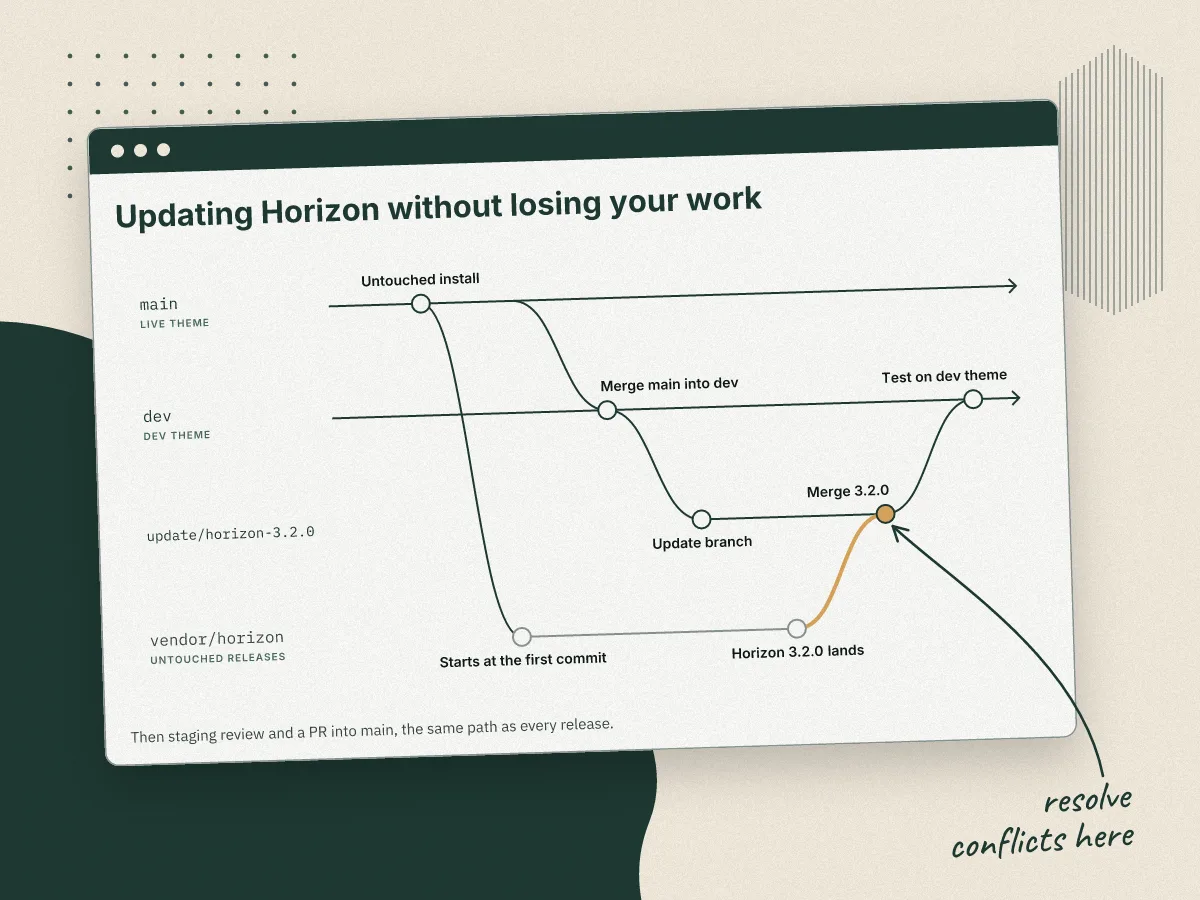
The cleanest way to get that exact version is to add a fresh, unedited copy of the new release to the store as an unpublished theme, then pull it into the vendor branch:
Because our work lives in prefixed files, most of the merge is clean. Conflicts show up only in the core files listed in docs/changes.md, which is exactly where we expect them. For merchant-owned JSON (config/settings_data.json, the templates, and any market context files), we keep the store's version and only add new settings or templates the update introduces.
Then the update goes through the normal path. It's tested on the dev theme, reviewed on staging against a checklist of the store's key pages and custom features, and merged into main by pull request. Shopify's Growth Services guide notes the Theme Updater can reset template assignments, so we also check that each JSON template still points at our custom sections.
The one requirement for all of this is that the vendor branch and main share history. That's why the first commit matters. If you're adopting this on a store that was never in Git, the order matters. Start the repo with an untouched copy of the same theme version the store runs, and make that the first commit on both vendor/horizon and main. Then pull the live theme as it is today and commit it on top of main. Now Git has a common starting point, and that second commit shows exactly what the store changed.
When the client owns the repo
Some clients already have a GitHub organization, an in-house developer, or another agency, and the theme repo belongs to them. That's a good thing for the client, and it changes one rule for us: their repo is the source of truth, and our work reaches the live store only when it's merged into their branch.
There are two ways we set this up, depending on how much access the client wants to give.
One GitHub detail decides a lot of this. Per Shopify's GitHub integration docs, only members of a GitHub organization with write access can connect branches to a store. Outside collaborators can't, and personal repos where you're a collaborator rather than the owner don't even show up in the list. If the client's repo is on a personal account, the client has to connect it themselves, or move it into an organization and add us as members.
Remotes: name them so nobody guesses
We use the same names everywhere. origin is where we push day to day. upstream is the client's repo, the source of truth. If the store runs on a vendor theme, that remote is named after the theme, like horizon. All of them go in the README, copied from git remote -v.
Pulling the client's changes down
Before starting any work, and again before opening a pull request, we bring in everything the client's side has done, including the Shopify bot's commits from theme editor saves. It's the same fork-syncing process GitHub documents:
Pushing our work up
Unless the client tells us otherwise, we don't push straight to their main. Work goes up as a pull request against whichever branch they use for review, usually their staging branch, with the preview link and test notes in the description. Their developer or project lead merges it. That keeps them in control of what goes live, and it means our changes go through their review process, not around it.
If they have their own conventions for branch names, commit messages, or pull request templates, we follow theirs instead of ours.
Who owns the connected branch
Only the client's repo should be connected to the live theme. A theme connects to one branch at a time, so if our fork were the one connected, merchant edits would land in our repo instead of theirs and the client's history would fall behind. We connect our own repo only to unpublished dev themes, if at all.
Access and offboarding
We agree on these up front, in writing, so the end of a project is boring:
- Shopify access .
We access your store through a collaborator account, which the store owner can scope and remove at any time. Shopify's own guidance prohibits asking a merchant for their password, so we never do. - GitHub access.
GitHub is only granted to named people, not shared logins, and removed when the work ends. - If we host the repo...
We transfer it to the client's GitHub organization at the end of the engagement. Shopify suggests discussing who controls the repo before connecting it, and mentions transferring it as part of the final handoff. Test that the theme connection still syncs after any transfer, and remember that a disconnected branch can't be reconnected to the same theme. - The README and
docs/changes.mdare part of the handoff.
We do this so the next developer knows exactly what was customized and how to take the next theme update.
What to expect when you work with us

If you're a merchant, here's the short version of everything above. Your theme lives in GitHub, every change we make is recorded and reversible, and nothing reaches your live store until you've seen it.
- You keep working in the theme editor like always.
Change banners, rearrange your homepage, and edit content whenever you want. Those changes are saved to your live branch automatically, and our process is built to never overwrite them. - You'll get a staging preview before anything goes live.
We'll send a link to a preview theme with the new work on it, plus a short list of what changed and what to check. You approve it, then we publish. - Small fixes move fast.
An urgent fix can go straight to the live theme the same day, and we fold it into the next release so it isn't lost. - Theme updates are planned, not scary.
When the theme developer releases an update, we merge it on a separate branch, test it on staging, and show it to you before it goes live. Your customizations come along with it. - You own your code.
If you already have a GitHub organization, we work in your repo through pull requests your team can review. If you don't, we set one up for you, and it's yours at the end of the project. - Access is clean and temporary.
We use a Shopify collaborator account, which you control and can remove any time, and we'll never ask for your password. When we're done, we hand over the repo, the README, and a list of every customization, and we remove our access. - Anyone can pick up where we left off.
Because the history and documentation live with your code, another developer, in-house or otherwise, can take over without starting from scratch.
The short checklist
If you take one thing from this post, make it the habit of pulling main down before pushing anything up. Here's the rest on one page:
- One repo per store, named
client_shopify, with a README listing branches, themes, and remotes mainconnected to the live theme,staginganddevto their own unpublished themes- Branch protection on
main, with pull requests required and the Shopify GitHub app allowed to bypass - Merge main into staging and dev before every promotion
- Treat
settings_data.json, JSON templates, and market context files on main as the merchant's content - Start from an untouched vendor install, kept on
vendor/horizon - Prefix every custom file, copy core sections instead of editing them, and log unavoidable core edits
- Take vendor updates on an
update/branch and test them on staging - In a client-owned repo,
upstreamis theirs, and work goes in by pull request - Agree on access and handoff at the start, not the end
If you're a developer and want to compare notes, or a merchant who wants a theme you can actually maintain, get in touch.